
Thinking of using Confluence as your eDMS? Don’t be quick to dismiss it. With Atlassian Marketplace apps to fill the gaps, including Workflows for Confluence by AppFox and Radbee’s own Jira Snapshots for Confluence, you can configure the most critical features required for any eDMS.
Is Confluence capable of being the electronic document management system (eDMS) for a medical device, pharmaceutical business, or other regulated industries? If you’re unsure, we don’t blame you. Out of the box, Confluence doesn’t meet all the needs of an eDMS – and it’s not sold as one by Atlassian.
That’s why companies using Confluence this way have always turned to Atlassian Marketplace to fill the gaps. In the past, this posed a significant challenge, but at the time of writing (early 2025), it’s pretty straightforward to find a choice of apps for managing controlled documents in Confluence. In this article we’ll walk through a solution that uses Workflows for Confluence for the eSignature and approval flow.
In a recent webinar (embedded at the bottom of this page), RadBee CEO Rina Nir showcased one of our favorite solutions: Workflows for Confluence by AppFox, including how it can be used to implement a page approval mechanism and electronic signatures. She was joined by Yulia Lenina, Partner manager from AppFox, who also shared some behind-the-scenes details of how the app was developed and the company’s future plans.
You are currently viewing a placeholder content from YouTube. To access the actual content, click the button below. Please note that doing so will share data with third-party providers.
Atlassian Marketplace Apps turn Confluence into eDMS
You can access the showcased solution via our sandbox environment. The setup we demoed relies on the following three Marketplace apps:
Workflows for Confluence
This is the backbone for the page approval process and electronic signatures. It also provides the following elements:
- Control metadata for each page: the document’s unique ID and the official version. Notably, the official version is an extra layer, augmenting the native versions in Confluence.
- Control table: for each official version of the signature manifestations and the official version information.
- Mechanism to automatically have the draft and current official versions of each page.
- Automation of restricted permissions for pages that are approved.
Snapshots of Jira data into Confluence
One of the big gains from managing official documents in Confluence is the integration with Jira. You can add snapshots to Confluence to streamline your release documentation. As regulated teams have significant obligations in regards to release documentation, the Snapshots app removes bottlenecks and speeds things up.
In the demo environment, the release documentation also includes test results from Xray. To retrieve Xray data as part of your snapshots, you’ll also need Snapshots Traceability Extensions.
Scroll PDF Exporter
An eDMS is not complete without a robust way to export beautiful PDFs from Confluence. With this app, you can also include all the control data on each page header.
Ticking the box for major eDMS requirements
With the setup described above, you can meet all the most critical eDMS requirements, right in Confluence. Here we take a look at seven of them (link to each section):
- CFR 21 part 11 eSignature
- Official versioning and document metadata
- Robust access control
- Clear identification of draft vs official versions
- Multi-level approvals
- Sharing with third parties
- Release documentation with Jira data included
CFR 21 part 11 eSignature in Confluence
Using Workflows for Confluence, each user needs to set up a connection between a mobile phone authentication app and the Workflows app. Any major authentication app, like Okta’s or Microsoft’s, is supported.
CFR 21 part 11 requires you to establish double authentication. The first element is the user’s email address and the second is the one-time password obtained from the authentication app.
The connection between Workflows for Confluence and the authentication app needs to be renewed at regular intervals (at the time of writing, every month), and configured connections can also be revoked by administrators.
Workflows for Confluence provide flexibility with eSignature implementation. There’s the option to have approvals that do not require an eSignature, which can be granted by ticking a box. Whether an approval requires an eSignature or not is part of its specific workflow configuration.
You are currently viewing a placeholder content from YouTube. To access the actual content, click the button below. Please note that doing so will share data with third-party providers.
Official versioning and document metadata
In Confluence, each page update creates a new version of that page, which is fine for casual usage but not for controlled documents. Workflows for Confluence adds the option to flag specific page versions as “official” and list them according to the official versioning sequence.
This is baked directly into the workflow configuration, where the administrator can decide at what points a new version number gets associated with the page and where a version is officially approved and becomes part of the document control table.
The official version number is linked to the applicable native Confluence (unofficial) page version number. This linkage can be viewed in the document control table, which also hyperlinks directly to the view of that historical page version.
You are currently viewing a placeholder content from YouTube. To access the actual content, click the button below. Please note that doing so will share data with third-party providers.
Robust access controls
When configuring an eDMS, teams typically consider two access-related questions: First, how do we ensure that only authors and approvers have access to the pages that are drafted or in the process of being approved? Second, how do we protect the approved pages so that they are not accidentally updated and taken back into a drafting state?
Out of the box, Confluence has multilayered access control. Access is managed on the site level, on the space level, and on the page level. The first question is answered at the space level. As we explain below, all documents have a mirror page in the master space. This mirror page is protected from being edited – everyone has view-only access. The original version exists in a drafting space where only users who need to update or approve documents have access.
To answer the second question and help avoid the accidental reopening of approved documents, you can use Workflows for Confluence. To achieve this level of control, you need to configure dynamic permission assignments at the page level. Three things to bear in mind:
- While drafting a new version, the page does not have any page-specific restrictions. Anybody with write access to the space can edit the page.
- No restrictions are added while the page is in review. However, if the page is edited while in review, it bounces back to the drafting status, and all approvals are revoked.
- Once the page is approved, page-specific restrictions are applied to it. The page cannot be edited. To edit the page, an authorized user will need to first change its status to “drafting.”
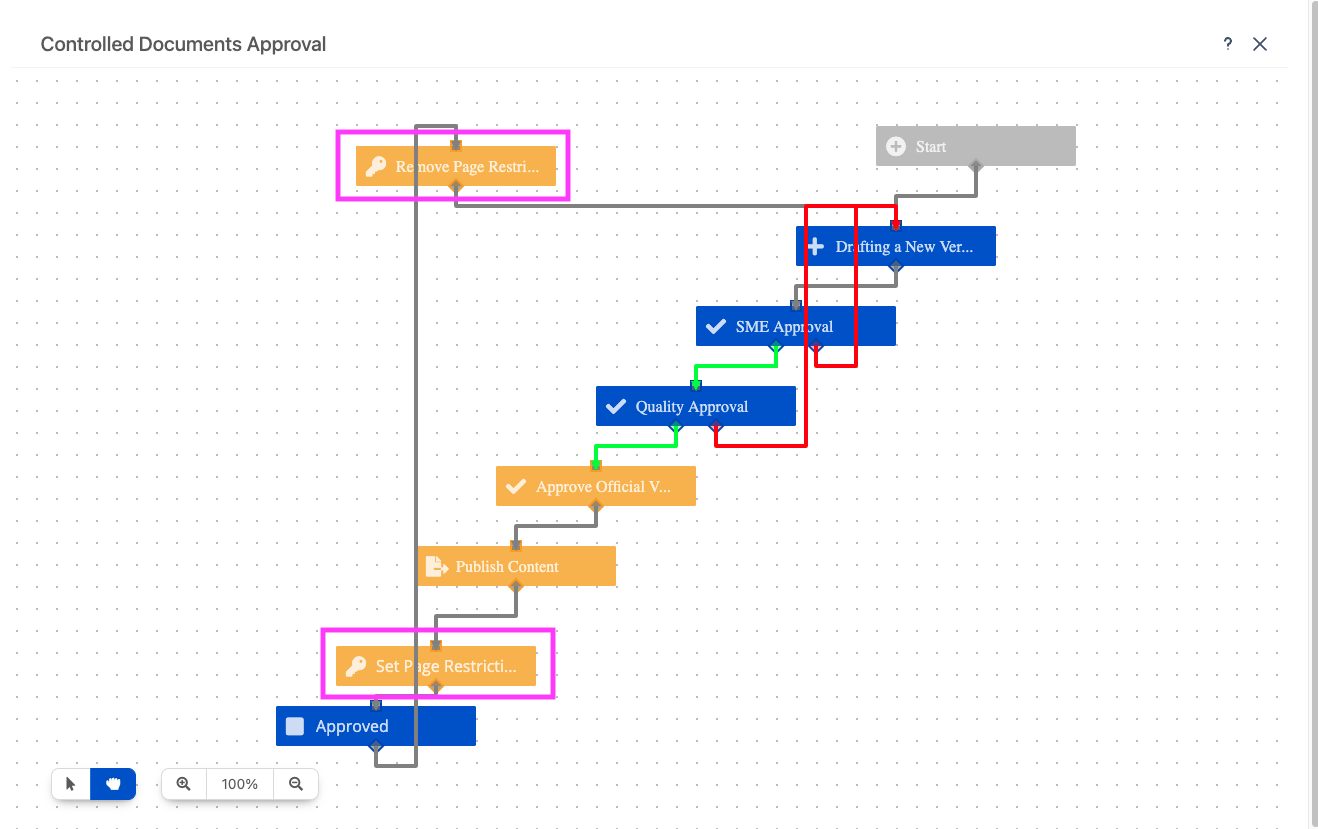
Workflows for Confluence: the configuration allows to modify page specific permissions during the approval flow
Workflows for Confluence: the configuration allows to modify page specific permissions during workflows.
Clear identification of draft vs official
You want to avoid any confusion and ensure that everyone works according to a single source of truth. Which means you don’t want any users working on a version of the procedure that hasn’t been approved.
To achieve this, it’s best practice to work in two spaces: a drafting space where new versions are authored and a mirror space where the latest approved version of any page resides. When a new version is approved, the mirror page is updated, and the previous official version is archived.
In Workflows for Confluence, this is called “publishing”. Once all approvals are granted, the workflow publishes the new version of the page a designated location – the master space.
In our demo, we used drafting and master spaces. Take a look at the screenshot to see how we carried out the “publishing” action after the last approval was granted.

Workflow for confluence can be configured to publish (mirror) pages from the draft to master space during the workflow
Multi-level approvals
The Workflows for Confluence app is named after its key feature – it assigns pages with a workflow. The workflow takes the page through statuses, and each status is a building block with its own rules. This approach gives you a lot of configuration flexibility. And because you can configure as many workflows as you need, you can really tailor them to each type of document.
In our demo, the approval process is in two stages: first, we assign a number of SMEs to approve. The step is configured so that all of them need to sign before the page moves to the next step. Second, a single representative from the quality team needs to sign, and then the approval cycle is complete.
You are currently viewing a placeholder content from YouTube. To access the actual content, click the button below. Please note that doing so will share data with third-party providers.
Sharing with third parties
For continuous use, Confluence is your source of truth. However, there are two significant reasons to export Confluence pages into a PDF format:
- Sharing your pages with third parties: either regulatory authorities or customers.
- Creating an archive of your records external to Confluence.
Of course you want the PDF export to look good and reflect your company brand. And for controlled documents, you need the document metadata, including the document ID and official version featured on the header of each page.
Scroll PDF Exporter helps you do both. It creates beautiful PDFs in your brand style and can pick up the page’s metadata (from Workflows for Confluence) and include it in the export. In fact, we’ve created a Scroll PDF Exporter template that does just that.
The template is published now on K15t’s public documentation library, and you can download it here
Release documentation with Jira data included
With the above elements, you can establish the basis of an eDMS in Confluence. But one of the biggest gains to be had by using Confluence is speeding up your release documentation process – the largest chunk of documents that flows through your eDMS.
With Jira Snapshots for Confluence you get a static, hierarchical table of your Jira issues right inside Confluence. Once a document with a snapshot is defined, updating it for the next release only requires the press of the button.
All the way from user story to release, the Snapshots app helps capture important information so that release documentation becomes quicker, flawless, and more standardized.
And if you’re using Xray for test management, there’s even more reason to use Snapshots. With our Traceability Extension, you can generate traceability reports that include detailed test data alongside your Xray data.
You are currently viewing a placeholder content from YouTube. To access the actual content, click the button below. Please note that doing so will share data with third-party providers.
Configure your own eDMS on Confluence
We hope this article convinces you that Confluence can be configured to be an effective eDMS. Remember, this is only one example. Many of the elements covered in our demo can be tweaked and configured differently to suit your needs. That’s the power of Confluence and Atlassian Marketplace apps.
Dive deeper
If you want to find out more about using Confluence as an eDMS, here are a few next steps:
- Log in to our sandbox environment to see this example in action.
- Check out our white paper to read about how it’s changed the game for some organizations – and how it could transform the way your team works, too.
- Contact us to find out how we can help you implement your own eDMS in Confluence.
You are currently viewing a placeholder content from YouTube. To access the actual content, click the button below. Please note that doing so will share data with third-party providers.